AI assistants in client portals – a game changer in customer support
In a world where customers expect instant, reliable answers, traditional support channels are starting to show their limits. Phone queues, overflowing inboxes, and scattered knowledge bases often leave both clients and teams frustrated. But a new shift is underway — one that blends secure customer portals with powerful AI assistants to transform how support is delivered.
Embedding AI directly inside a client portal changes the entire dynamic of customer service. Instead of searching for answers, clients receive them instantly. Instead of navigating multiple systems, they interact with a single, secure space that knows their history, understands their needs, and guides them through tasks, forms, documents, or compliance steps.
This isn’t just an efficiency upgrade — it’s a completely new support experience. And for firms already using client portals for onboarding, document exchange, payments, or compliance… adding an AI assistant might just be the most impactful enhancement yet.
Let’s explore how and why.
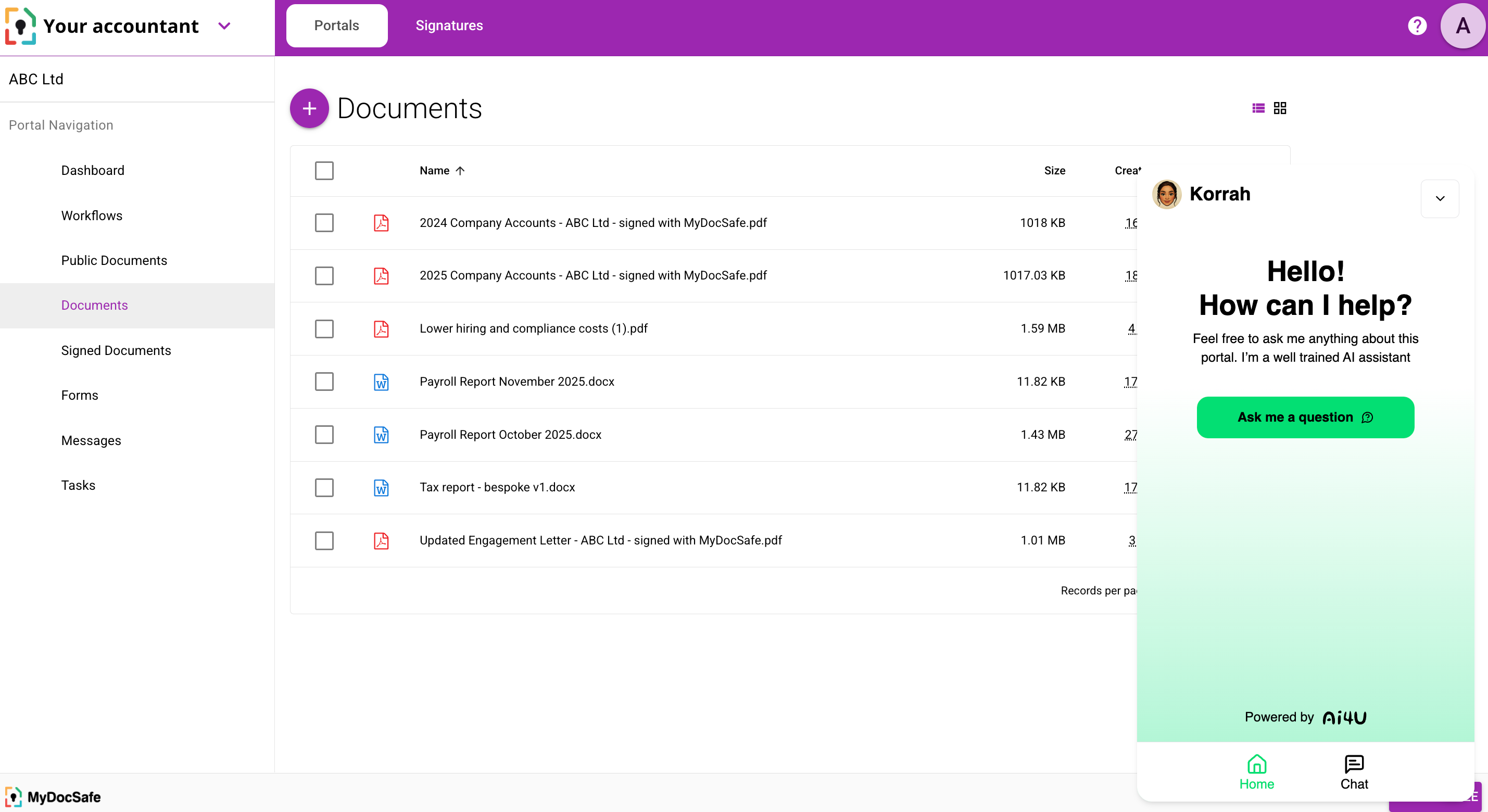
Step-by-Step: Installing Korrah in MyDocSafe
Step 1: Create Your Korrah Assistant in Ai4U
o We assume that you already have your assistant configured. If not, please read this article first and come back here when ready.
Step 2:Test and Fine-Tune Korrah
Before embedding the assistant into MyDocSafe, open the Playground and
- Update tone or behaviour in the System Prompt
- Ask typical client questions
- Check accuracy scores
- Correct or expand the knowledge base
Once you’re happy with the responses, move to the next step.
Step 3:Generate the MyDocSafe Integration Token
In AI4U:
- Open your Project → AI Assistant
- Click on the “…” icon for the selected assistant and select “View Details”.
- Click on the Features tab. Then copy the Access Key— you’ll paste it into MyDocSafe in the next step. This token securely links your Korrah instance with your organisation’s MyDocSafe account.
- In the “Assistant allowed domains” section, add “app.mydocsafe.com”
Step 4: Install Korrah in MyDocSafe
Inside your MyDocSafe dashboard:
- You can select the Portal Group where Korrah will appear: each portal group can have a different agent
- Go to Portals → Select your Client Portal Group → Settings
- In the General tab, paste the Ai4U token in the “Ai4U Agent Code” section. Remember to click the “Save” button.
Korrah is now installed.
Related articles
View all posts →September 29, 2025
On the Superiority of Secure Portal Messaging over WhatsApp
On the Superiority of Secure Portal Messaging over WhatsApp Accountants are busier than ever. Clients expect instant answers, documents flow in at all hours, and regulations tighten every year. In conversations with our clients—many of them accountancy practices—we learned that a large number had, at some point, given out their personal WhatsApp numbers to clients. […] Read More…
October 28, 2026
Budget 2026 and Making Tax Digital: what accounting firms should do before April 2027
Budget 2026 gives sole traders and landlords joining MTD in April 2027 a year without late-submission penalty points, but not those who joined in April 2026. Here's what changes on 6 April 2027 and a six-step plan for the winter.
September 29, 2025
Self-Service Selling of Professional Services
Self-Service Selling of Professional Services – Powered by a Single Link Professional services are changing. Clients expect the same convenience from accountants, tax advisors, solicitors, and consultants as they do from online retailers: speed, clarity, and self-service options. The firms that adapt will stand out. At MyDocSafe, we’ve made that adaptation simple—by enabling you to […] Read More…